Sky Go Buffering on Windows 11 Fix Guide
Estimated reading time: 18 minutes.
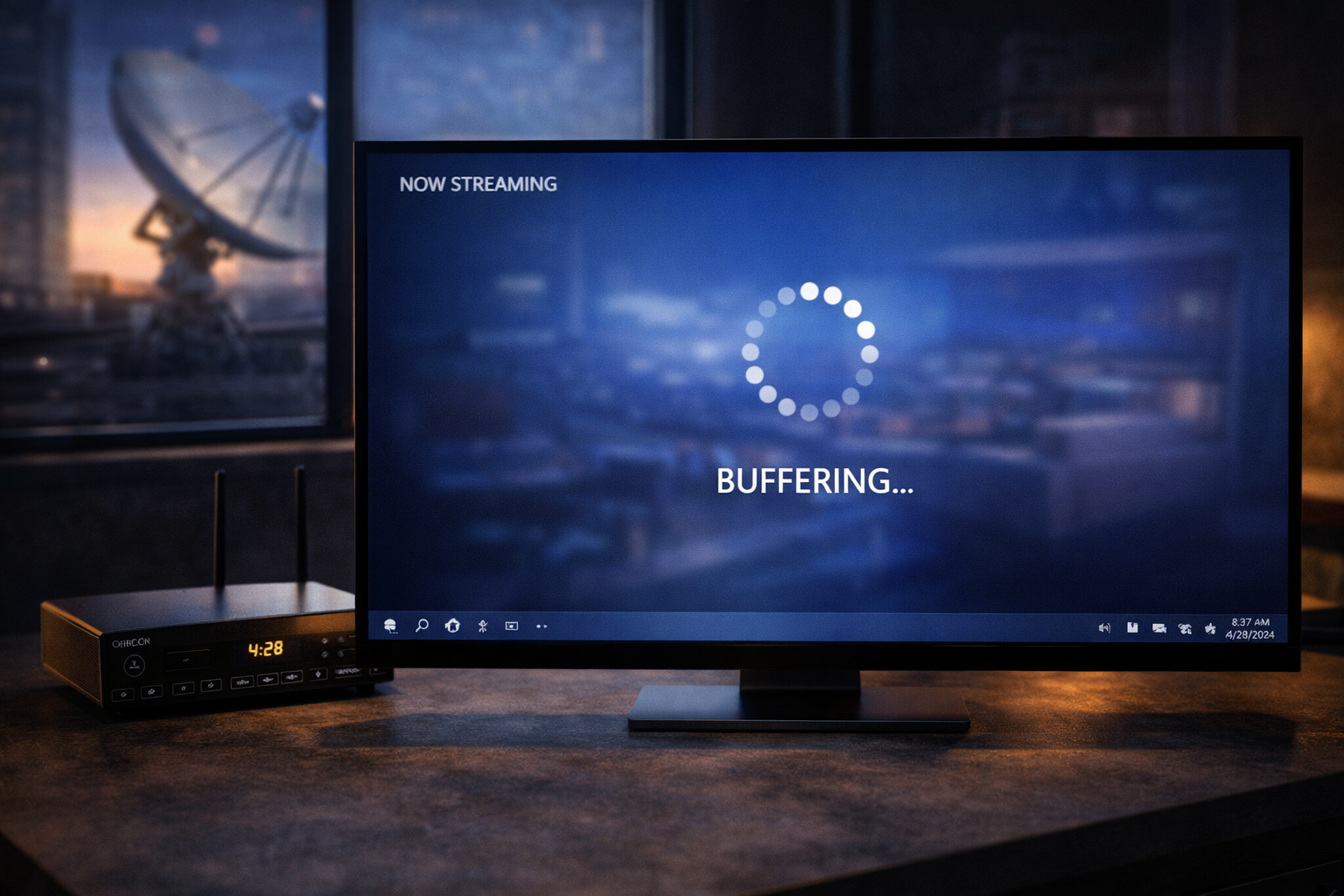
Buffering is one of the most common complaints when watching Sky Go on a Windows 11 computer. The stream begins normally, but after a short period the video pauses, the player displays a loading circle, and playback resumes only after a delay. Many viewers immediately assume the service itself is unstable. In reality, buffering usually indicates a temporary imbalance between incoming video data and the speed at which the system can process and display it.
Streaming video requires a continuous chain of stable actions. The application must request video segments from the streaming server, the network must deliver those segments consistently, the computer must decode them quickly enough, and the player must maintain a playback buffer that stays ahead of the viewer’s position. When any part of that chain slows down, buffering becomes visible on screen.
Quick Context
This guide explains why Sky Go buffering appears on Windows 11, how streaming buffers actually work, and what technical factors most often cause unstable playback on desktop computers.
- What buffering really means during streaming
- How the Sky Go playback buffer works
- Why network stability affects buffering
- Wi Fi interference and home network congestion
- System load and background processes
- Graphics decoding and hardware acceleration
- Adaptive streaming and quality adjustments
- Why live channels buffer more than on demand video
- Practical steps to diagnose buffering
- Typical buffering scenarios
- Reality Check
- Final Verdict
- Frequently Asked Questions
What buffering really means during streaming
Buffering appears when the Sky Go player cannot maintain a steady supply of video data for playback. Unlike satellite television, where the receiver continuously decodes a broadcast signal, streaming depends on downloading small pieces of video through the internet.
These pieces are temporarily stored in a playback buffer inside the application. The buffer acts as a safety margin between the incoming data and the viewer’s current playback position. If the data arrives quickly and consistently, the buffer remains full and playback continues smoothly.
However, if the incoming data rate drops or the system struggles to process the stream, the buffer begins to shrink. When the buffer becomes too small, the player pauses playback to rebuild the reserve of video data. This pause is what viewers experience as buffering.
In most situations buffering does not mean the stream has stopped completely. It means the player temporarily lost its safety margin.
How the Sky Go playback buffer works
Sky Go uses a segmented streaming system where the video arrives in short media segments. Each segment contains a few seconds of video. The application continuously downloads these segments and stores them ahead of the viewer’s playback position.
When playback begins, the app waits until a small buffer has been created. Once enough segments are stored, the player starts displaying video. While the viewer watches, the application continues downloading additional segments in the background.
As long as the download process stays ahead of playback, the viewer sees uninterrupted video. If downloads fall behind, the player pauses temporarily to allow the buffer to rebuild.
This system allows Sky Go to adapt to different network conditions, but it also means playback depends heavily on consistent data delivery.
Why network stability affects buffering
Many viewers focus only on internet speed when troubleshooting buffering problems. Speed matters, but stability matters more. A connection that briefly delivers very high speed but repeatedly slows down can still cause playback interruptions.
Streaming requires a steady flow of data rather than short bursts of bandwidth. If the connection fluctuates, the player may struggle to keep the playback buffer full even though the average connection speed appears acceptable.
Latency spikes and packet delays can also affect streaming performance. Even small interruptions in data delivery can cause the player to pause briefly to rebuild the buffer.
This is why buffering sometimes appears randomly even on fast broadband connections.
Wi Fi interference and home network congestion
Wireless networks introduce additional variables into the streaming process. Walls, furniture, neighboring networks, and other wireless devices can all interfere with Wi Fi signals. These factors may reduce signal quality even if the internet connection itself is fast.
Home network congestion can also cause buffering. If several devices are streaming video, downloading updates, or uploading large files at the same time, the available bandwidth for Sky Go may fluctuate.
In such cases the connection speed measured during a quick test may still look good, but the real time delivery of video segments becomes uneven. The player reacts by lowering quality or pausing playback to rebuild the buffer.
This explains why buffering often appears during busy evening hours when multiple devices share the same connection.
System load and background processes
Not all buffering is caused by the network. Sometimes the Windows 11 system itself is under heavy load. If the processor, memory, or storage system becomes busy with other tasks, the application may struggle to decode incoming video segments quickly enough.
Background applications such as cloud synchronization tools, large downloads, or software updates can consume system resources that the streaming player needs for smooth playback.
When system load increases, the player may fall behind in decoding or rendering frames. Even if the video data arrives correctly, the viewer still experiences pauses or stuttering.
Reducing unnecessary background activity can often improve playback stability.
Graphics decoding and hardware acceleration
Modern streaming applications rely on graphics hardware to decode video efficiently. When hardware acceleration works correctly, the graphics processor handles part of the decoding workload, reducing the burden on the CPU.
If graphics drivers are outdated or incompatible, Windows may fall back to software decoding. This means the CPU must process every video frame directly. Under these conditions the system may struggle during high resolution playback, causing dropped frames or buffering.
Updating graphics drivers or ensuring hardware acceleration functions correctly can significantly improve streaming performance on Windows 11.
In many cases buffering is partly related to how efficiently the system handles video decoding.
Adaptive streaming and quality adjustments
Sky Go uses adaptive streaming technology to maintain playback under changing network conditions. If the connection becomes unstable, the application may temporarily reduce video quality so the stream can continue without interruption.
This behavior may be noticeable when the image briefly becomes less sharp or when resolution changes during playback. The adjustment helps prevent complete playback failure.
However, if the connection becomes too unstable, the player may still need to pause playback to rebuild the buffer.
Adaptive streaming therefore reduces buffering in many cases but cannot eliminate it entirely when conditions become too unstable.
Why live channels buffer more than on demand video
Live television streams operate closer to real time, leaving less room for buffering adjustments. When watching a live channel, the player attempts to stay near the current broadcast point rather than building a large buffer ahead of time.
On demand content is slightly more flexible. Because the video already exists on the server, the application can build a larger playback buffer before starting the video. This often results in smoother playback for recorded programmes compared with live broadcasts.
As a result, viewers sometimes notice buffering more frequently during live sports or live news streams.
This behavior is normal for most streaming platforms.
Practical steps to diagnose buffering
When buffering appears frequently, it helps to follow a simple troubleshooting process. Start by observing whether buffering occurs immediately or only after several minutes. Immediate buffering may suggest network instability, while gradual buffering may indicate system load issues.
Next check whether other devices on the network are using large amounts of bandwidth. Streaming quality may improve if heavy downloads or uploads are paused.
Then examine the local system environment. Closing unnecessary applications and ensuring graphics drivers are up to date can help the system decode video more efficiently.
By isolating network factors from system factors, viewers can identify the real cause more quickly.
Typical buffering scenarios
| Scenario | Possible cause | Recommended check |
|---|---|---|
| Video pauses every few minutes | Unstable internet delivery | Check network consistency |
| Buffering appears during busy evening hours | Network congestion | Reduce competing traffic |
| Playback struggles on older laptops | Weak decoding performance | Check graphics drivers |
| Buffering only during live channels | Limited live stream buffer margin | Observe connection stability |
Reality Check
Sky Go buffering on Windows 11 usually reflects temporary imbalance between incoming data and playback speed rather than a complete service failure. Stable networks and healthy system performance usually reduce buffering significantly.
Final Verdict
Final Verdict
Buffering on Sky Go for Windows 11 typically occurs when the streaming buffer cannot stay ahead of playback. Network instability, Wi Fi interference, background system load, and inefficient video decoding are the most common contributing factors. By understanding how streaming buffers work and how the Windows environment processes video playback, viewers can identify the real cause of buffering and improve overall streaming stability.
Frequently Asked Questions
| Question | Answer |
|---|---|
| Why does Sky Go keep buffering on Windows 11 | Buffering usually occurs when the incoming video data does not arrive quickly or consistently enough to maintain the playback buffer. |
| Does internet speed affect Sky Go buffering | Yes, but connection stability and latency are often more important than peak speed. |
| Can system performance cause buffering | Yes. Heavy system load or inefficient video decoding may slow playback even when the network is stable. |
| Why do live channels buffer more often | Live streams operate closer to real time and usually maintain smaller playback buffers. |