Sky Go Video Quality on Windows 11 Explained
Estimated reading time: 17 minutes.
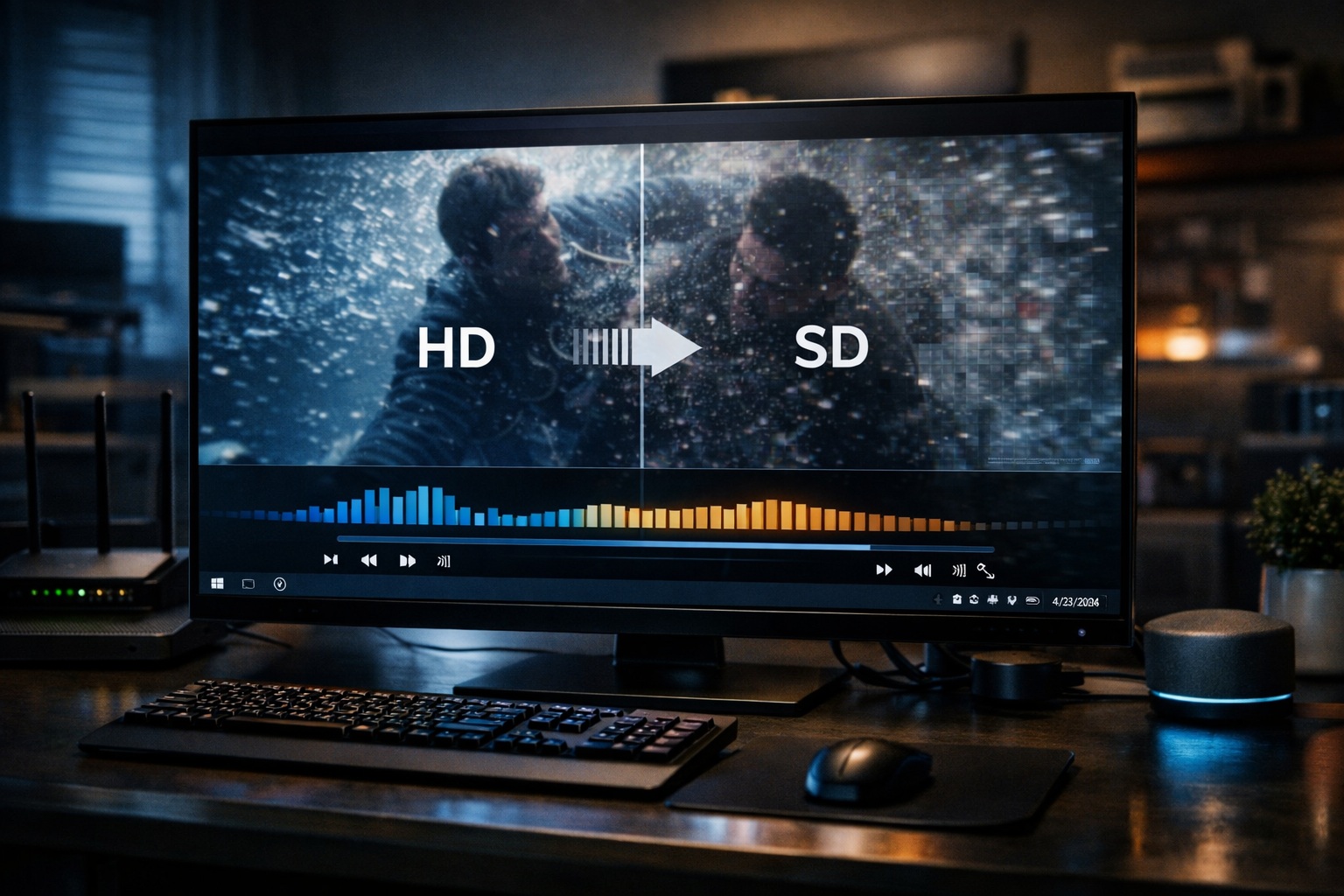
If you have ever watched Sky Go on Windows 11 and noticed the picture suddenly becomes blurry, then sharp again, you are not alone. Many viewers assume this is a problem or a fault in the app. In reality, this behavior is part of how modern streaming systems work. Sky Go constantly adjusts video quality based on real time conditions to keep playback running smoothly.
Unlike traditional satellite TV where quality is fixed by signal strength, streaming on a computer depends on several dynamic factors. These include network stability, device performance, decoding efficiency, and playback buffer health. When any of these conditions change, the video quality may adjust automatically.
Quick Context
This guide explains how Sky Go video quality works on Windows 11 and why resolution can change during playback depending on network conditions and system performance.
- What video quality means in streaming
- How adaptive streaming works
- Network stability vs speed
- The role of playback buffer
- System performance and decoding
- Graphics processing impact
- Live channels vs on demand quality
- Why quality changes during playback
- How to understand quality drops
- Typical quality scenarios
- Reality Check
- Final Verdict
- Frequently Asked Questions
What video quality means in streaming
In streaming, video quality refers to resolution, bitrate, and visual clarity. Higher quality means sharper images and more detail, while lower quality reduces clarity to make playback easier under limited conditions.
Unlike satellite broadcasting, where a fixed signal delivers consistent quality, streaming adapts continuously. The application selects the most suitable quality level based on current conditions.
This is why video quality on Sky Go is not fixed. It is designed to change dynamically to maintain smooth playback.
The goal is not always maximum quality, but stable viewing without interruptions.
How adaptive streaming works
Sky Go uses adaptive streaming technology. Instead of sending one fixed video stream, the server provides multiple versions of the same content at different quality levels.
The application continuously monitors network performance and system conditions. Based on this information, it selects the most appropriate version of the stream.
If conditions improve, the app may switch to a higher quality stream. If conditions worsen, it lowers the quality to avoid buffering.
This switching happens automatically and often without noticeable interruptions.
Network stability vs speed
Many users believe high internet speed guarantees high video quality. However, stability is often more important than speed.
A connection that fluctuates frequently can cause the app to reduce quality even if peak speed is high. Streaming requires consistent delivery of data, not just fast bursts.
Latency and packet loss also affect quality. Even small interruptions can force the player to drop to a lower resolution.
This is why quality may change even on seemingly fast connections.
The role of playback buffer
The playback buffer stores a short amount of video ahead of what you are currently watching. It acts as a safety margin against network fluctuations.
If the buffer remains full, playback stays smooth and quality can remain high. If the buffer starts shrinking, the app may lower quality to rebuild stability.
Quality adjustments often happen before buffering appears. This helps avoid visible interruptions.
So when quality drops, it is often the app protecting playback continuity.
System performance and decoding
Video streaming does not depend only on the network. The computer must also decode and display the video efficiently.
If the system is under heavy load, decoding performance may decrease. This can lead the app to select a lower quality stream that is easier to process.
Older devices or systems running many background applications may experience more frequent quality changes.
System performance therefore plays a direct role in perceived video quality.
Graphics processing impact
Modern streaming relies on graphics hardware to assist with video decoding. When hardware acceleration works correctly, playback remains smooth even at higher resolutions.
If the graphics driver is outdated or unstable, decoding performance may decrease. This can lead to lower quality selection or unstable playback.
Graphics performance is especially important for high resolution streams.
Efficient rendering helps maintain consistent video quality.
Live channels vs on demand quality
Live streaming operates closer to real time and usually maintains a smaller playback buffer. This makes it more sensitive to network changes.
On demand content allows the player to build a larger buffer before playback begins. This often results in more stable quality.
As a result, viewers may notice more quality fluctuations during live channels compared to recorded programmes.
This behavior is normal for streaming platforms.
Why quality changes during playback
Quality changes occur when the app detects a change in conditions. This could be a drop in network stability, increased system load, or reduced decoding efficiency.
Instead of stopping playback, the app adjusts quality to keep the stream running.
This can appear as a sudden drop in sharpness followed by recovery after a few seconds.
These changes are part of the adaptive streaming process and not a malfunction.
How to understand quality drops
To understand quality changes, observe when they occur. If they happen during peak internet usage times, network congestion is likely involved.
If they occur when multiple applications are running, system performance may be the cause.
If they happen only during live streams, limited buffer size may be responsible.
Identifying patterns helps determine which part of the streaming chain is affecting quality.
Typical quality scenarios
| Scenario | Cause | Explanation |
|---|---|---|
| Quality drops during evening hours | Network congestion | More devices sharing bandwidth |
| Quality improves after a few seconds | Adaptive adjustment | System stabilized |
| Blurry image at start | Buffer building | Stream still initializing |
| Lower quality on older laptop | Decoding limits | System cannot handle higher bitrate |
Reality Check
Sky Go video quality changes on Windows 11 are usually intentional adjustments made by the streaming system to maintain smooth playback rather than signs of a broken application.
Final Verdict
Final Verdict
Sky Go video quality on Windows 11 is controlled by adaptive streaming technology that balances visual clarity with playback stability. Network consistency, system performance, graphics processing, and buffer health all influence how the stream behaves. Understanding these factors helps explain why quality changes occur and how to achieve more stable viewing conditions.
Frequently Asked Questions
| Question | Answer |
|---|---|
| Why does Sky Go quality change automatically | Because the app adjusts quality based on real time conditions to prevent buffering. |
| Does internet speed affect video quality | Yes, but stability is often more important than peak speed. |
| Why is quality lower on live channels | Live streams use smaller buffers and are more sensitive to network changes. |
| Can my computer affect streaming quality | Yes. System performance and graphics processing influence playback efficiency. |